
Timed play
The default mode to play Go in this app is without any time limit. If you like, however, you can give yourself (and your opponent) a limited amount of time to make your moves.
The place to enable this is, naturally, on the “New game” screen, specifically at the very bottom of the screen (expand the illustration on the right). where you find the “Time settings” item. This item is available for all three game types: human vs. computer, human vs. human, and computer vs. computer).
See the Start a new game manual page for details on other options that can be selected for the new game.
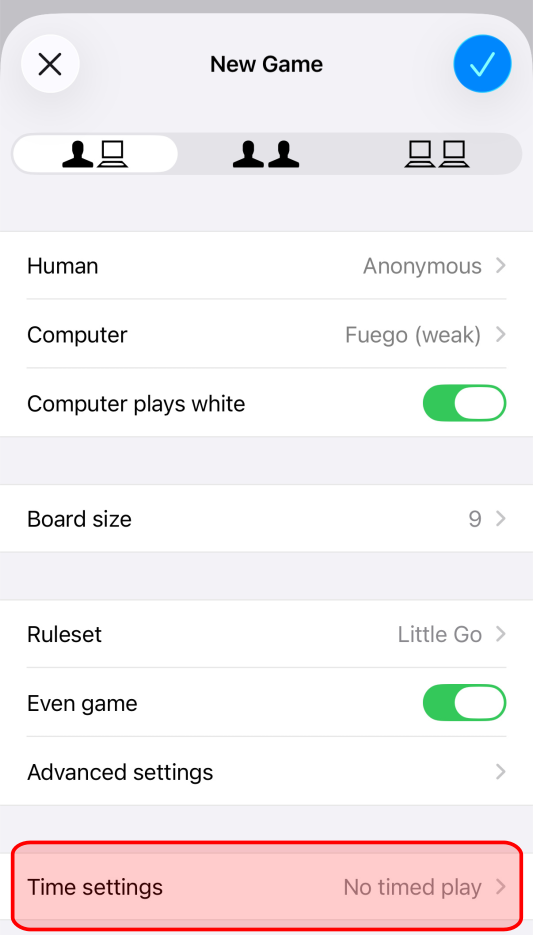
Tapping the “Time settings” item calls up another screen where you can choose from a number of time limit options.
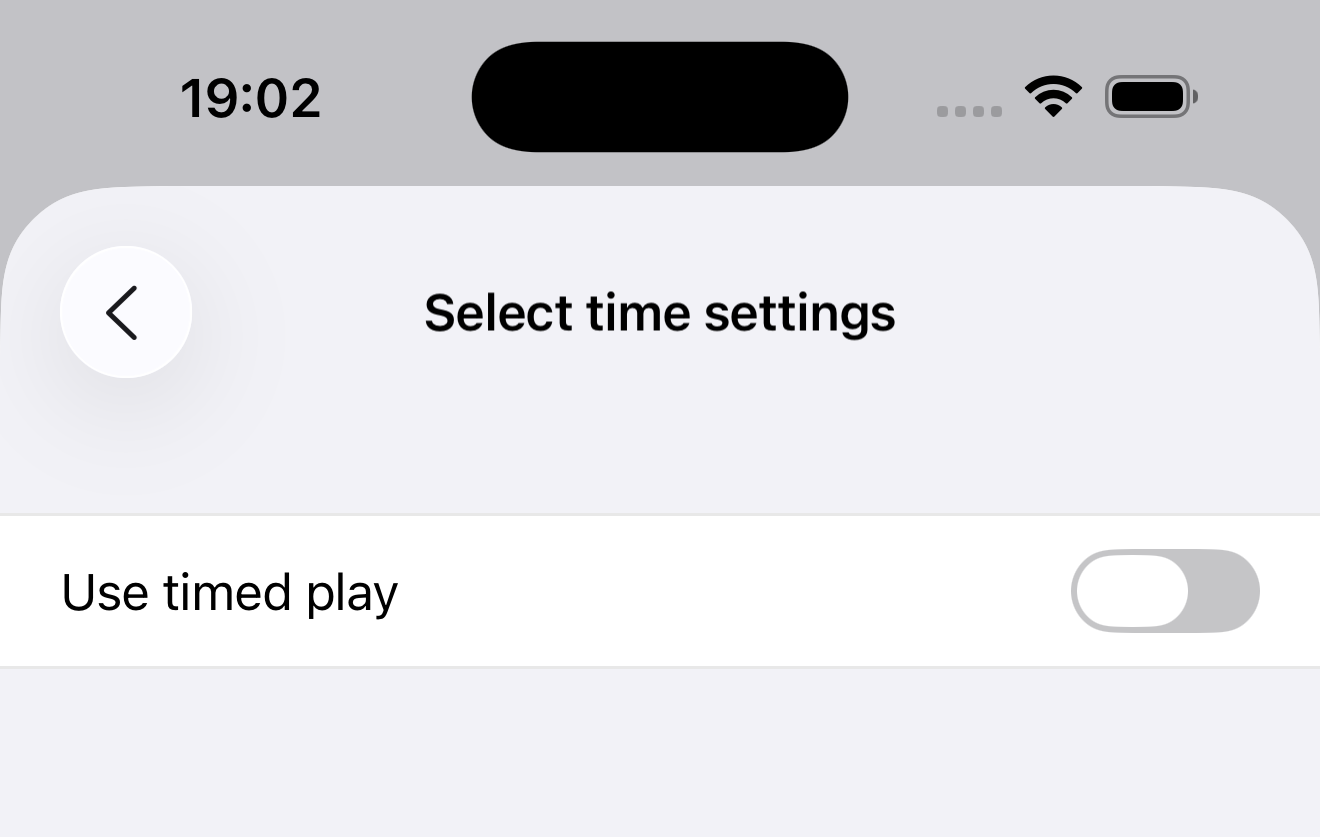
By default timed play is disabled, as shown in the illustration on the right. Tapping the “Use timed play” toggle will enable timed play and show the time limit options that were hidden until now. Continue to read to learn more.
TipAs is the case with other “New game” options, once you start the game the chosen time settings can no longer be changed.
The next two sections first explore the basic concepts of Main time and Overtime, but if you already know what these are, feel free to jump ahead to the Default time settings section further down.
The app allows to split a game with time limits into two distinct phases, called “Main time” and “Overtime”. On a timeline:
+----- Main time -----++----- Overtime -----+
|                     ||                    |
v                     vv                    v
-------------------------------------------->
Game start                            Game end
TipThe diagram implies that Main time and Overtime are of equal length. As will soon become clear, this ist not the case.
A game can combine Main time and Overtime in different ways:
| Combination | Remarks |
|---|---|
| Only Main time | When a player runs out of Main time, they lose the game. |
| Only Overtime | When a player runs out of Overtime, they lose the game. |
| Both Main time and Overtime | The order is always Main time followed by Overtime, never the other way around. When a player runs out of Main time, the Overtime system kicks in. When the player also runs out of Overtime, they lose the game. |
| Neither Main time nor Overtime | Timed play is disabled. |
Main time is the simplest possible time system: A straight amount of time from which time is deducted for each move a player makes.
When a player’s remaining Main time reaches zero the player loses the game, unless the game is also configured with Overtime, in which case the player receives additional time based on the configured Overtime system.
Main time is sometimes also called “Sudden death”. The time system used for Main time is known as “Absolute Timing”.
For details see the entry for “Absolute Timing” on the website Sensei’s Library.
In this app, “Overtime” is used as a general term referring to that part in the game that is governed by the rules of an Overtime system.
The app supports several such Overtime systems. Although the details differ, all Overtime systems have the following common characteristics:
- The player is required to make a certain number of moves within a given time period.
- If the player manages to make the required number of moves before they run out of time, they get additional time.
- If the player fails to make the required number of moves, they lose the game.
See the Time systems section further down for a list of all time systems supported by the app, and the detailed rules that govern those time systems.
The following illustration shows the default time settings when you enable timed play for the first time.
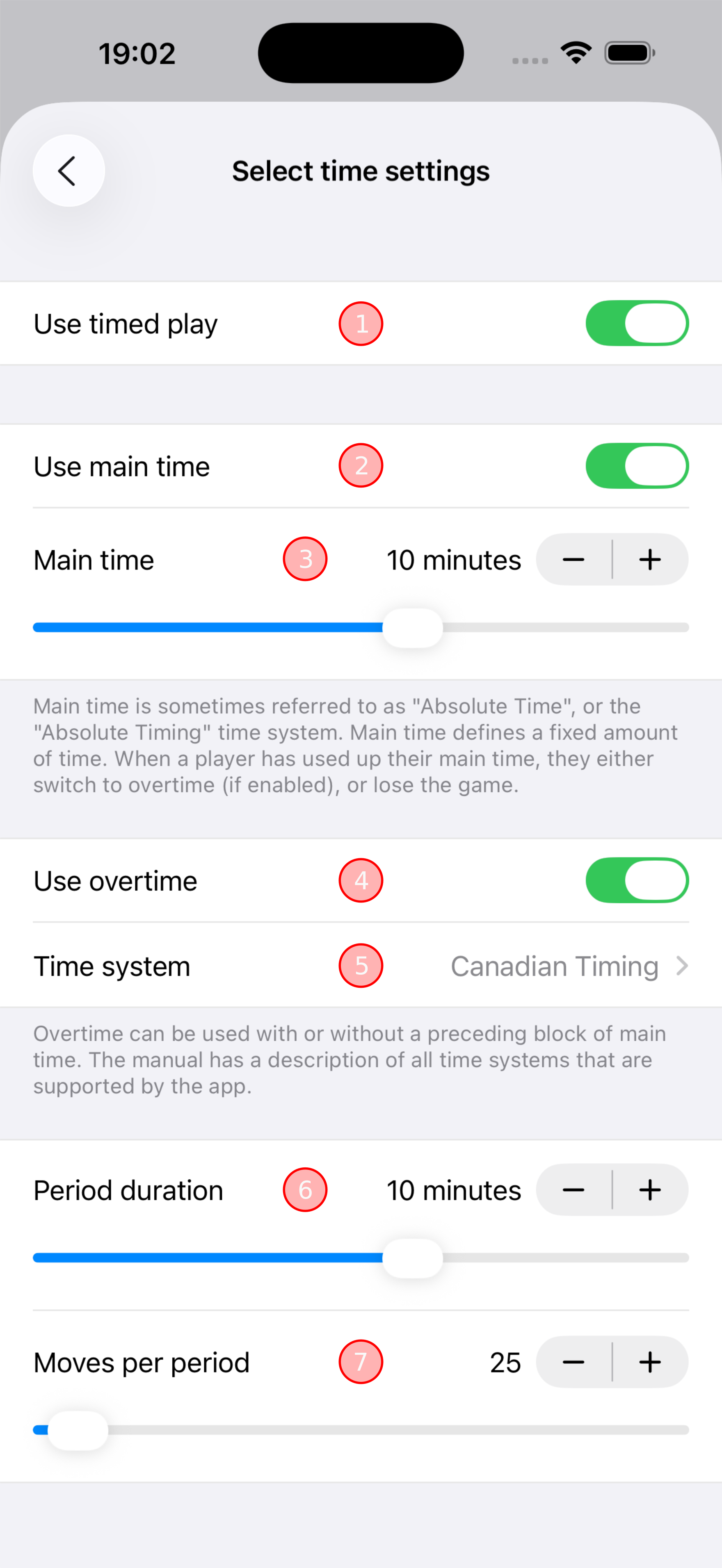
- At the top is the toggle option that lets you enable and disable timed play.
- The “Use main time” toggle option enables or disables Main time. See the previous sections for a definition of what Main time is.
- The “Main time” slider lets you adjust how much time each player initially should have available during the Main time phase of the game. The stepper lets you fine-tune the duration.
- The “Use overtime” toggle option enables or disables Overtime. See the previous sections for a definition of what Overtime is.
- The “Time system” item displays which Overtime system is currently selected. Tapping the item calls up another screen where you can select a different Overtime system. The default, as shown in the illustration, is Canadian Timing. The available Overtime systems and their rules are explained in detail in the next section.
- The “Period duration” slider lets you adjust how much time is given each player to make the number of moves that is selected in the “Moves per period” item. The stepper lets you fine-tune the duration. Note: This setting is specific to Canadian Timing. When you select a different Overtime system, the setting will be replaced with a different setting.
- The “Moves per period” slider lets you adjust how many moves each player has to make within the time that is selected in the “Period duration” item. The stepper lets you fine-tune the number. Note: This setting is specific to Canadian Timing. When you select a different Overtime system, the setting will be replaced with a different setting.
TipThe app remembers the time settings you choose. When you start a new game the next time, the same time settings will be selected by default.
TipThe app also remembers the settings you select per time system. When you play game A with Canadian Timing, then play game B with Japanese Timing, then return to Canadian Timing for game C, the app will use the same Canadian Timing settings you used for game A.
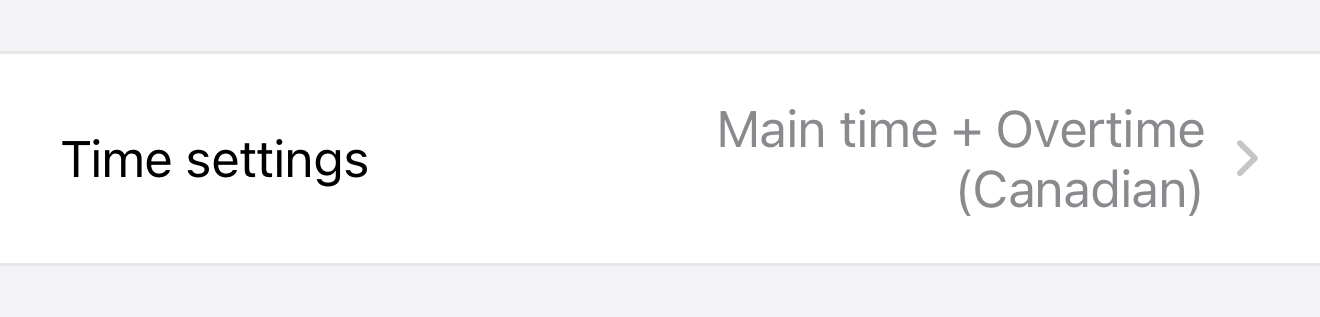
When you enable timed play and return to the “New game” screen, the app shows you a summary of the time settings you selected.
For brevity’s sake, the summary cannot show durations and numbers, but it shows whether you have enabled Main time or Overtime (or both), and, if applicable, the selected Overtime system.
The following illustration shows the Overtime systems that the app supports, together with a brief summary of how each time system works. Details are available in subsequent sections.
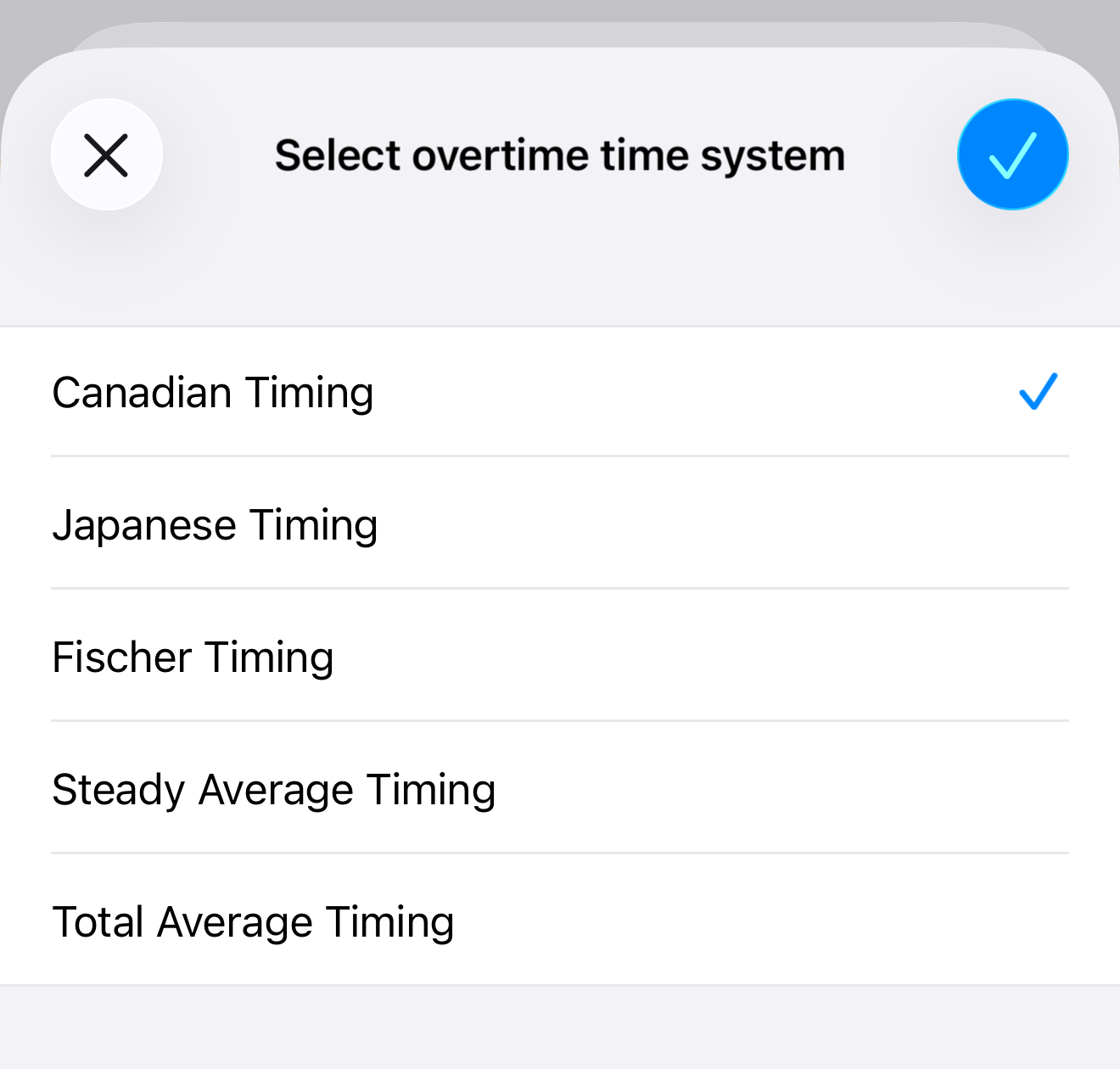
| Overtime system | Summary |
|---|---|
| Canadian Timing | Players must make a number of moves within a period of time. A new period begins after the player has made the moves. Unused time from the previous period is discarded. |
| Japanese Timing | Players get a number of same-length, relatively short periods. Players use up periods when their moves take longer than one period. |
| Fischer Timing | Players get an amount of initial time. Players must make their move within the remaining time. Players receive extra time after each move. |
| Steady Average Timing | Similar to Canadian Timing, but allows additional moves to be made if the period time is not fully used. |
| Total Average Timing | Similar to Canadian Timing, but adds unused period time to the next period. |
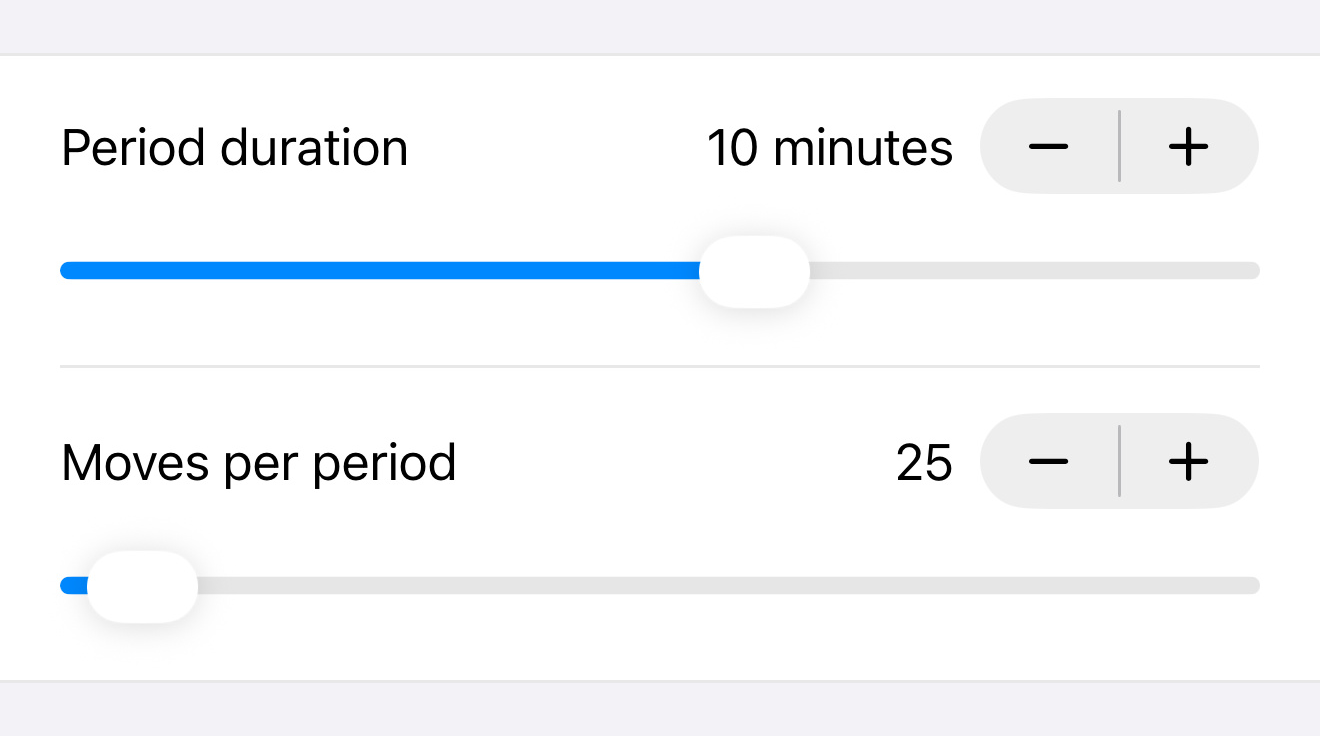
The illustration shows the settings that you can adjust when you select Canadian Timing as the Overtime sytem.
This is how it works:
- The player gets an amount of time - the “period duration”. The illustration shows 10 minutes as an example.
- The player must make a number of moves during that time period. The illustration shows 25 moves as an example.
- If the player runs out of time before having made the required number of moves, the player loses the game.
- If the player manages to make the required number of moves, a new period begins and the player again must make the same number of moves during that period.
- Any unused time from the previous period is discarded. In the example from the illustration, if the player made 25 moves within 9 minutes and 20 seconds, the unused 40 seconds are discarded and the next period again starts with 10 minutes.
For more details on Canadian Timing, see Sensei’s Library.
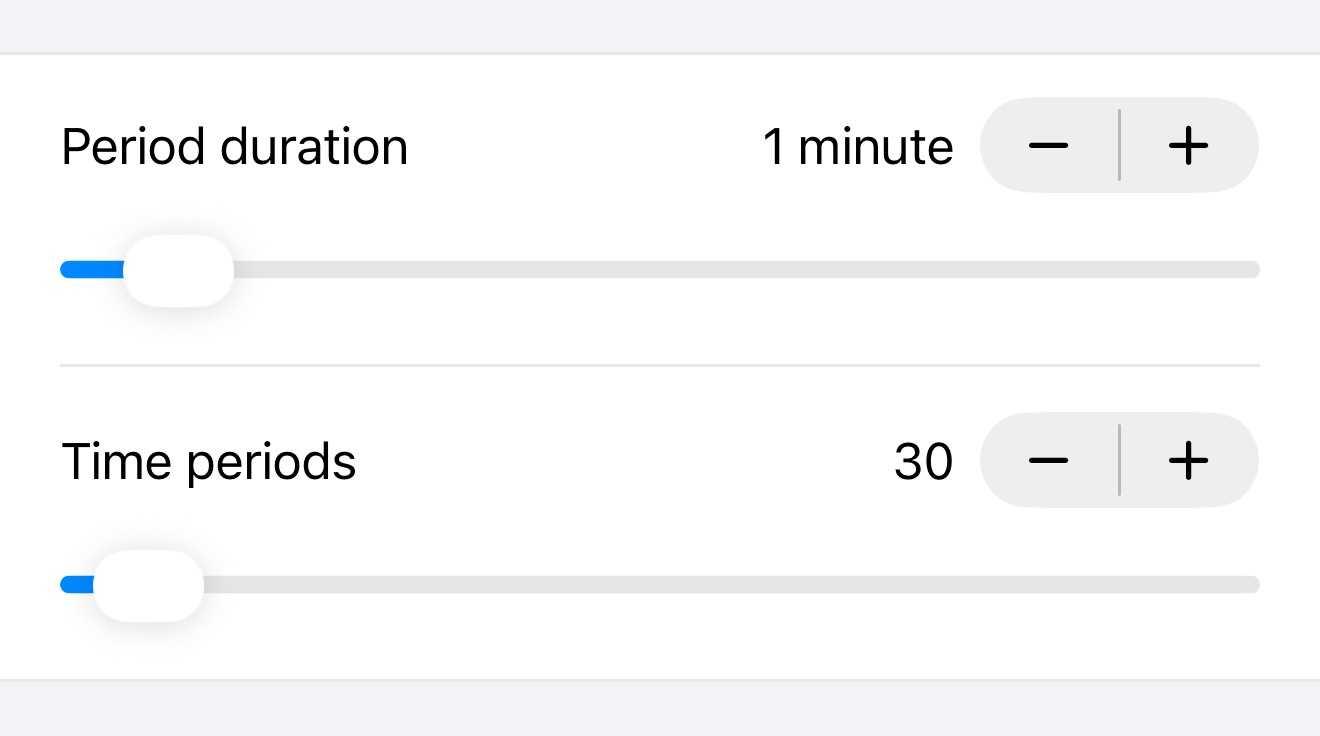
The illustration shows the settings that you can adjust when you select Japanese Timing as the Overtime sytem.
This is how it works:
- The player gets a number of periods each of which lasts the same time. As an example, the illustration shows 30 periods, each of which lasts 1 minute.
- The time the player takes to make a move is broken down into period durations. Time is deducted only for fully used periods. Partially used periods are not deducted. In the example from the illustration, if the player takes 200 seconds to make a move, they are using up 3 periods (3 times 60 seconds). The fourth period from which only 20 seconds were used is not deducted. When the player’s next turn starts, they have 27 full periods available to make their move.
- Consequentially, when a player takes less time than a period duration to make a move, no time at all is deducted.
- When the player has only one period left and they don’t make a move within the period duration (60 seconds in the example from the illustration), the player loses the game.
For more details on Japanese Timing, see Sensei’s Library.
InfoJapanese Timing is sometimes also referred to as “byoyomi” (alternate spellings: “byo-yomi”, “byo yomi”), derived from the Japanese Go term 秒読み. That term, however, actually means counting aloud the player’s remaining time. A player is “in byoyomi” when they only have a few seconds left and their remaining time is being counted aloud for them by the game’s timekeeper.
See Sensei’s Library.
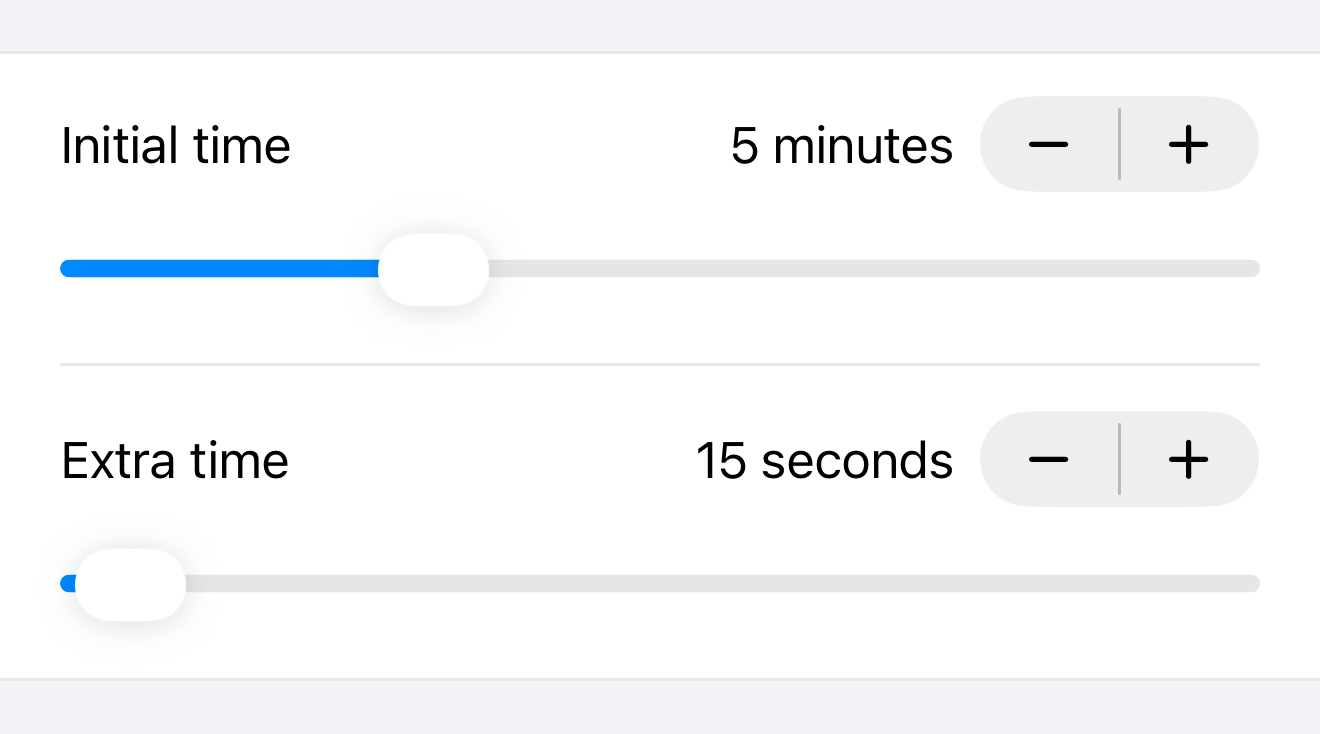
The illustration shows the settings that you can adjust when you select Fischer Timing as the Overtime sytem.
This is how it works:
- The player gets an initial amount of time. As an example, the illustration shows 5 minutes initial time.
- The player must make a move within their remaining time. The time used to make the move is deducted.
- An extra amount of time is added to the player’s remaining time after each move. The illustration shows 15 seconds as an example.
- If the player runs out of time before having made a move, the player loses the game.
- A player’s remaining time grows as long as they use less than the extra time added after each move.
For more details on Fischer Timing, see Sensei’s Library.
InfoFischer Timing is named after the chess player Bobby Fischer.
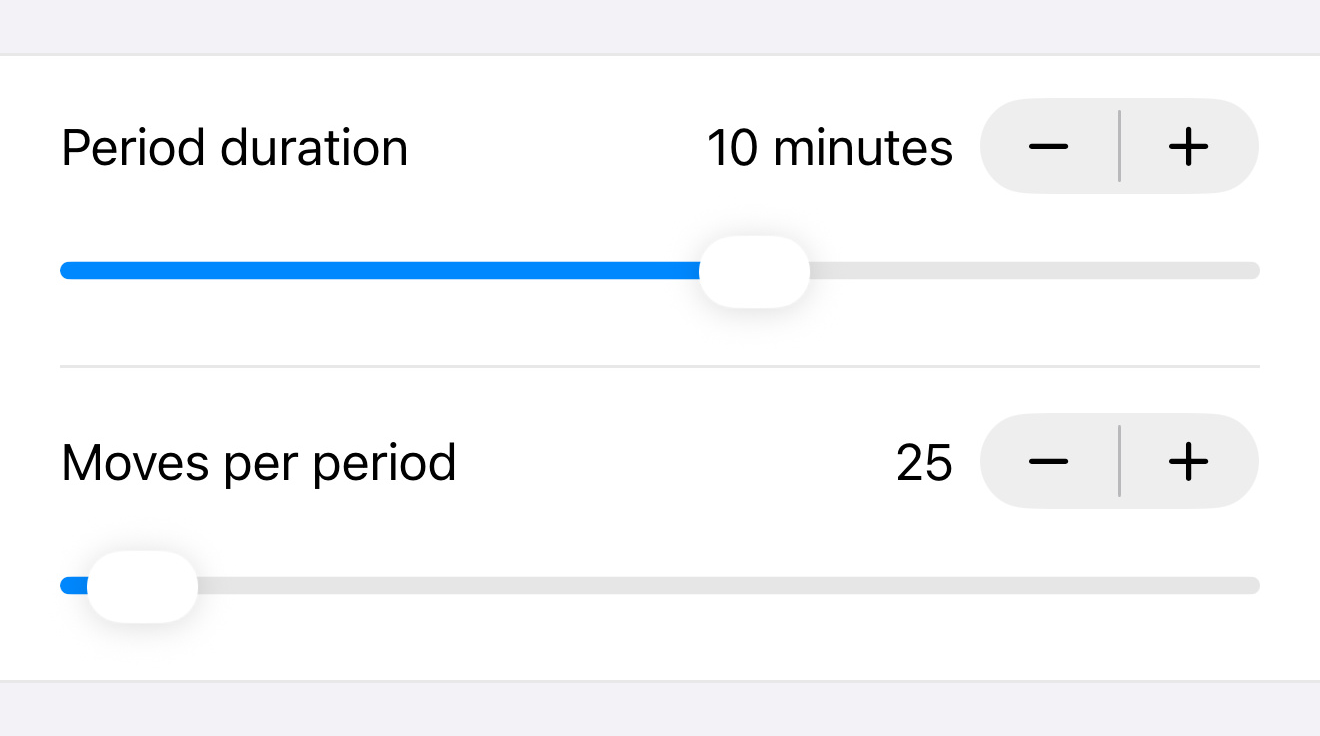
The illustration shows the settings that you can adjust when you select Steady Average Timing as the Overtime sytem.
This is how it works:
- The player gets an amount of time - the “period duration”. The illustration shows 10 minutes as an example.
- The player must make a number of moves during that time period. The illustration shows 25 moves as an example.
- If the player runs out of time before having made the required number of moves, the player loses the game.
- If the player manages to make the required number of moves, a new period does not begin immediately. Instead, the player can use the remaining time to make as many extra moves as they can fit into the remaining time. In the example from the illustration, if the player made 25 moves within 9 minutes and 20 seconds, they can use the remaining 40 seconds to make extra moves.
- When the player has eventually used up all of the remaining time, a new period begins and the player again must make the required number of moves during that period.
For more details on Steady Average Timing, see Sensei’s Library.
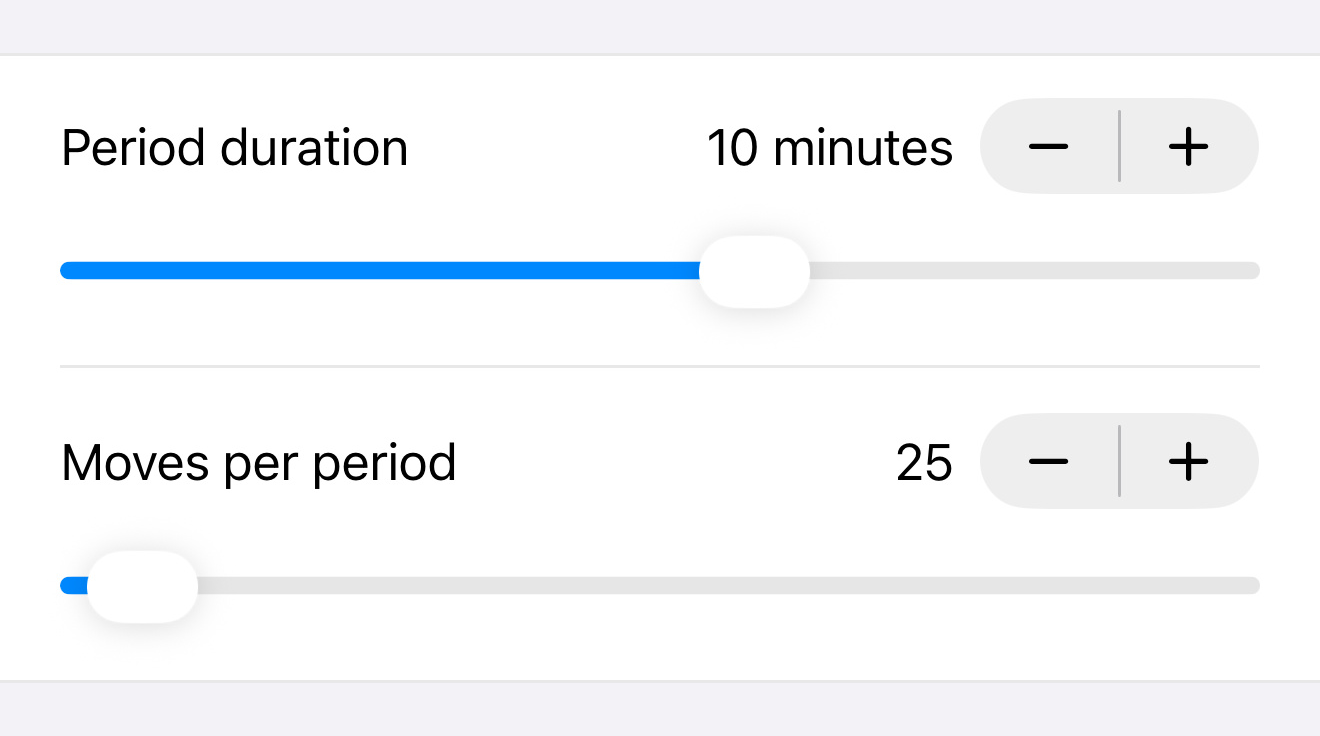
The illustration shows the settings that you can adjust when you select Total Average Timing as the Overtime sytem.
This is how it works:
- The player gets an amount of time - the “period duration”. The illustration shows 10 minutes as an example.
- The player must make a number of moves during that time period. The illustration shows 25 moves as an example.
- If the player runs out of time before having made the required number of moves, the player loses the game.
- If the player manages to make the required number of moves, a new period begins and the player again must make the same number of moves during that period.
- Any unused time from the previous period is added to the new period’s duration. In the example from the illustration, if the player made 25 moves within 9 minutes and 20 seconds, the remaining 40 seconds are added to the next period duration so that the player now has 10 minutes and 40 seconds to make the next 25 moves.
For more details on Total Average Timing, see Sensei’s Library.
The “Time settings” screen lets you select values via two types of sliders:
| Slider type | Minimum value | Maximum value |
|---|---|---|
| Time / duration | 1 second | 12 hours |
| Number of moves | 1 move | 1000 moves |
InfoThe maximum values supported by the app were arbitrarily chosen. If there are use cases for higher values, please report them.
Time / duration sliders on the “Time settings” screen are non-linear, which means that when you move the slider around it will not always change the time / duration value in one-second increments. Here is the breakdown:
| Value range | Slider increments | Examples |
|---|---|---|
| 1 second - 10 minutes | 1 second | 43 seconds, 6:29 minutes (6 minutes 29 seconds) |
| 10 minutes - 6 hours | 1 minute | 27 minutes, 4:58 hours (4 hours and 58 minutes) |
| 6 hours - 12 hours | 5 minutes | 7:40 hours (7 hours 40 minutes) |
The rationale for this non-linearity is that when you are working with long durations, at some point it no longer makes much sense to have a selection with a precision / resolution of one second. For instance, it should hardly be relevant whether a period is 30 minutes long, or 30 minutes and 1 second. There is also a practical aspect: Moving a slider on an axis with 43'200 individual seconds (12 hours duration) is rather cumbersome.
InfoThe breaks at which the increments change were arbitrarily chosen at the 10 minute and the 6 hour marks. If there are use cases for different breaks, please report them.
When you start a game with timed play, the Play area displays the clocks of both players next to the Status Text at the top of the screen, as shown in the following illustration.
The black player’s clock (①) is always displayed on the left hand side, while the white player’s clock (②) is always displayed on the right hand side.
When the game does not use timed play, these clocks are not displayed.
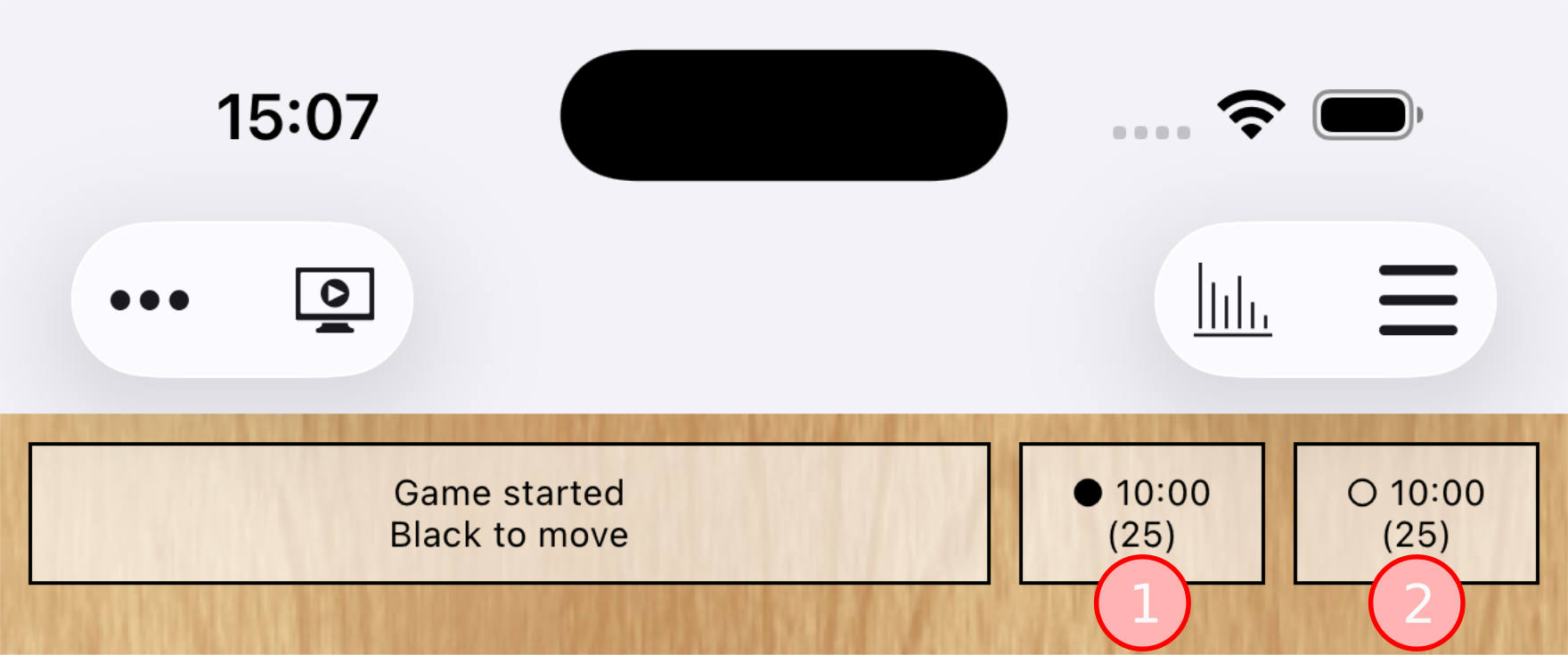
Player clocks can have three states, as indicated by the color of the clock’s border:
- A black border (①) indicates that the clock is stopped and the player’s remaining time is not counting down. During typical play, a stopped clock means that it is not that player’s turn. In unexpected edge cases the app may keep the clock of the player whose turn it is in stopped state. When the game ends, the app stops both player clocks.
- A green border (②) indicates that the clock is started and the player’s remaining time is counting down every second. A player’s clock can only ever be started when it is that player’s turn.
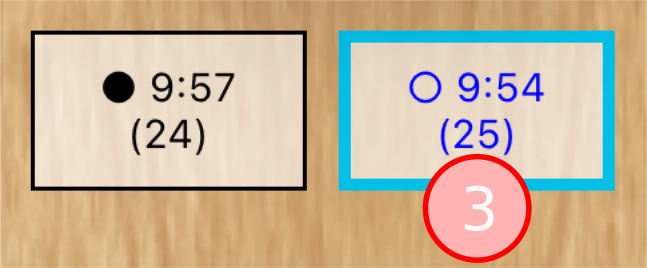
- A blue border (③) indicates that the clock is suspended and the player’s remaining time is not counting down. During typical play, a suspended clock means that it is that player’s turn, but a player’s clock may remain suspended even after it is no longer their turn. For details see the section Suspending the clock.
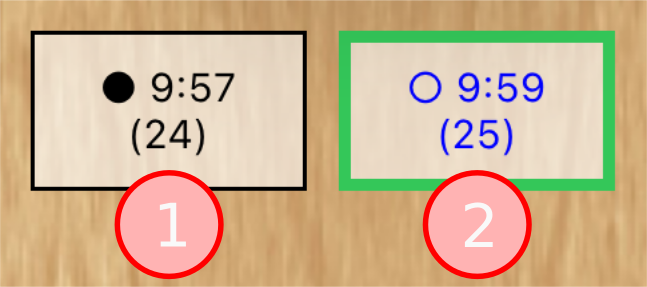
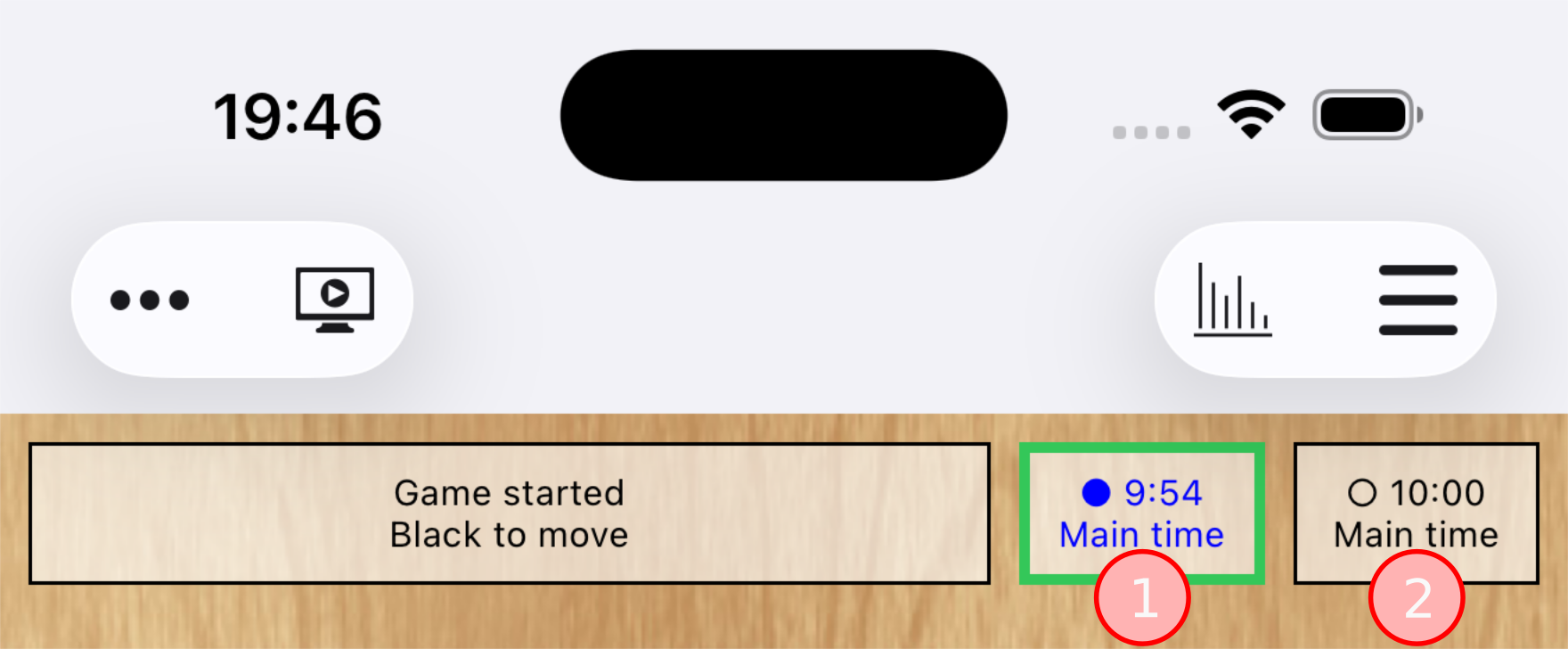
When the game begins, the app immediately starts the clock of the player who makes the first move.
This is shown in the illustration: Black is the first to move, so the black player’s clock (①) has the green border indicating that black’s clock is running. In the illustration, 6 seconds have already elapsed.
The white player’s clock (②) has the black border indicating that white’s clock is not running, and also that it is not white’s turn to play. None of white’s remaining time has elapsed yet.
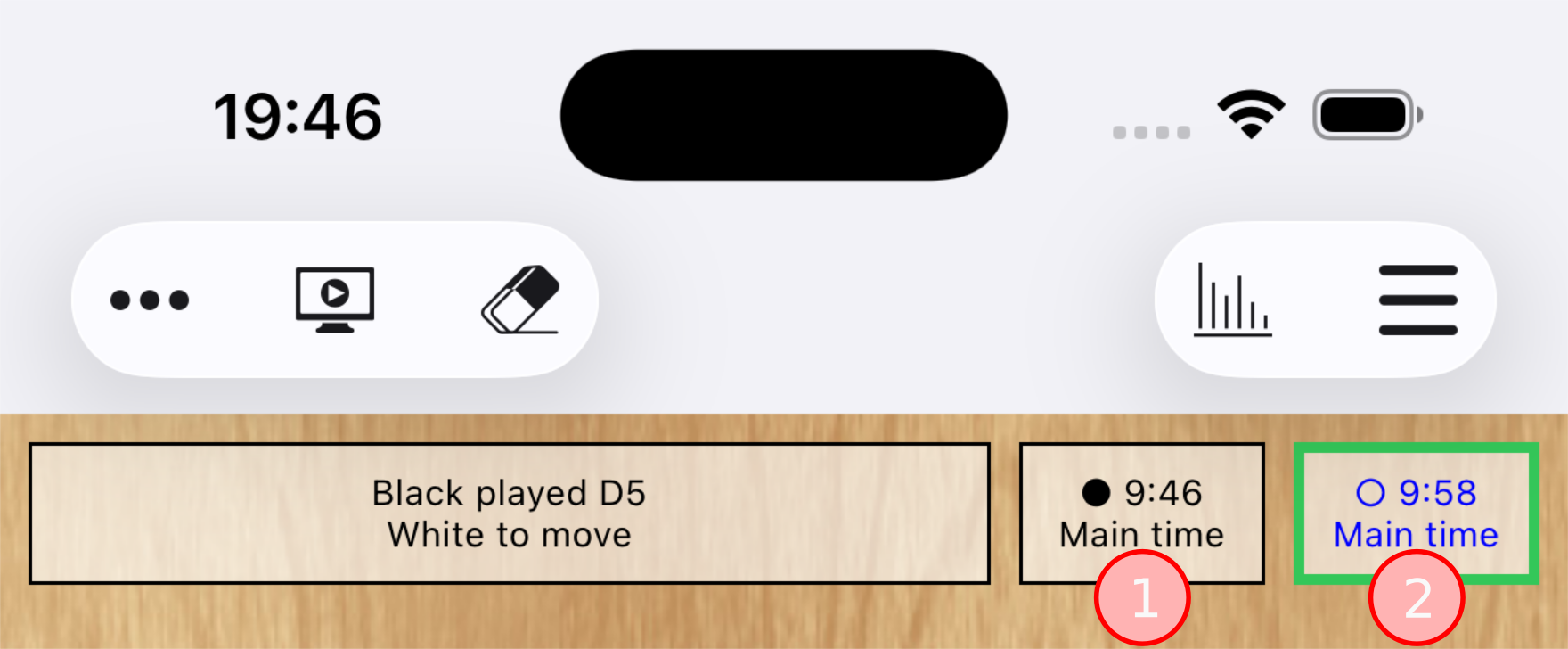
NoteBoth clocks display the words “Main time” below the remaining time. This indicates that both players are still in the Main time phase of the game. Once a player has used up their main time, that player’s clock will show Overtime information instead of the words “Main time”.
When a player makes their move, the app stops their clock and instead starts the clock of the player whose turn it is now.
This is shown in the illustration: Black has used 14 seconds to make a move. The black player’s clock (①) is now stopped, indicated by the black border.
Because it is now white’s turn, the white player’s clock (②) has the gren border indicating that white’s clock is running. In the illustration, 2 seconds have already elapsed.
The sequence of play continues as described in the previous sections until the game ends. At that time, the app stops both player clocks.
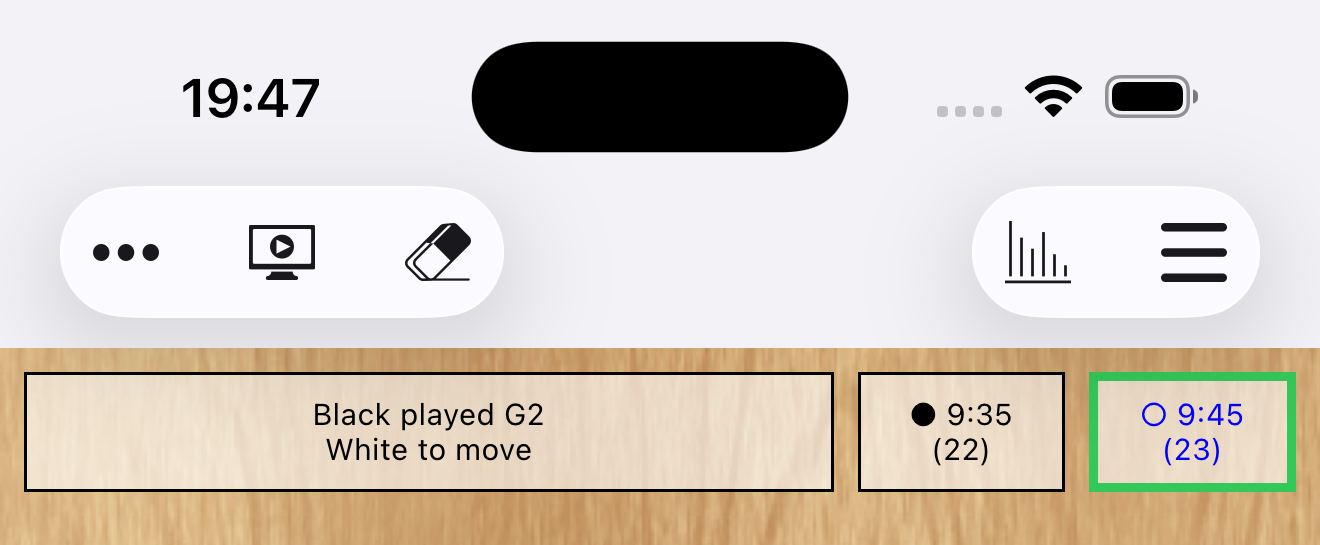
When players reach the Overtime phase of the game, player clocks start to display information relevant to the Overtime system instead of the words “Main time”.
The illustration shows an example when Canadian Timing is used as the Overtime system:
- Black has 9 minutes and 35 seconds left to make 22 moves.
- White has 9 minutes and 45 seconds left to make 23 moves.
NoteFor Japanese Timing the clocks use the same notation “(<n>)” as for Canadian Timing, but the number in parantheses indicates the number of periods left instead of the number of moves left.
For Steady Average Timing and Total Average Timing, the clocks use the same notation “(<n>)” as for Canadian Timing, with the same meaning.
For Fischer Timing the clocks don’t show any supplemental Overtime information.
The goal of this app is to let you play a timed game, but in a relaxed non-tournament, non-competitive environment where you have the freedom to suspend the clock whenever a distraction occurs, or when you choose to do so for any other reason.
In some cases where it makes sense the app automatically suspends the clock.
You can suspend any clock that is started (indicated by a green border) simply by tapping on the clock. The clock’s border will turn blue to indicate that the clock is now suspended. A suspended clock no longer counts down the time.
TipIf you play against the computer, you can also suspend the computer player’s clock. The computer player remains unaware of the suspension, though, and acts as if the clock were still running.
To resume time keeping, simply tap the clock again. The clock’s border will turn green to indicate that the clock is now running again.
A manually suspended clock remains suspended indefinitely until you start it again. This means that when a player’s turn ends:
- The suspended clock remains suspended even though it is no longer the player’s turn.
- You cannot tap the clock to remove the suspension because a player’s clock can never be started while it is not that player’s turn.
- When the player’s next turn begins, their clock remains suspended, but you can now tap the clock to remove the suspension and resume time keeping.
InfoIf you don’t like the manual clock suspension feature, you can turn it off in the Settings area of the app under “Timed play > Tap suspends clock”.
The app automatically suspends the clock of a human player if something happens that would prevent that player from making their move. Typical scenarios are when the game board is not interactive, or is obscured, or is not visible at all.
TipThe app does not auto-suspend computer players’ clocks, because computer players do not have to see or interact with the game board to make a move - they can always make a move.
Here are some scenarios for which the app auto-suspends a currently started human player clock. The list may not be complete, but it should give an idea of what the auto-suspend feature is about.
| Scenario / action | Effect | Example |
|---|---|---|
| You tap the Menu button. | The menu obscures the board. | |
| You tap the Game Info button. | The “Game Info” screen hides the board. | |
| You select an area that is not the Play area. | The board is no longer visible. | You select the Settings area. |
| The Suggest Move animation is playing. | The board is not interactive while the animation plays. | |
| You select a mode that is not the Play mode. | In other modes you cannot make a move. | You select Scoring mode. |
| You send the app to the background. | The app is no longer available. | |
| You receive a phone call. | The app is no longer interactive. |
InfoWhen the situation “normalizes” and the game board again becomes available for making moves, the app automatically removes the suspension, allowing the clock to resume time keeping. Example: The “Game Info” screen is dismissed and the board becomes visible again.
By default the app automatically starts a player’s clock when their turn begins. If you prefer starting the clock on your own (e.g. because you are often distracted and would lose time if the clock started while you are not focused on the game), you can turn off the automatic starting of the clock in the Settings area of the app under “Timed play”.
There are three different settings available to disable automatically starting the clock in different scenarios:
- Autostart clock when starting a new game.
- Autostart clock when loading a game from the archive.
- Autostart clock when turn begins.
When one of these autostart settings is disabled, the app suspends the player clock instead of starting it when the matching scenario occurs.
TipComputer players’ clocks are not affected by these settings, because computer players cannot be “distracted” - they are always ready and can start thinking immediately when it is their turn.
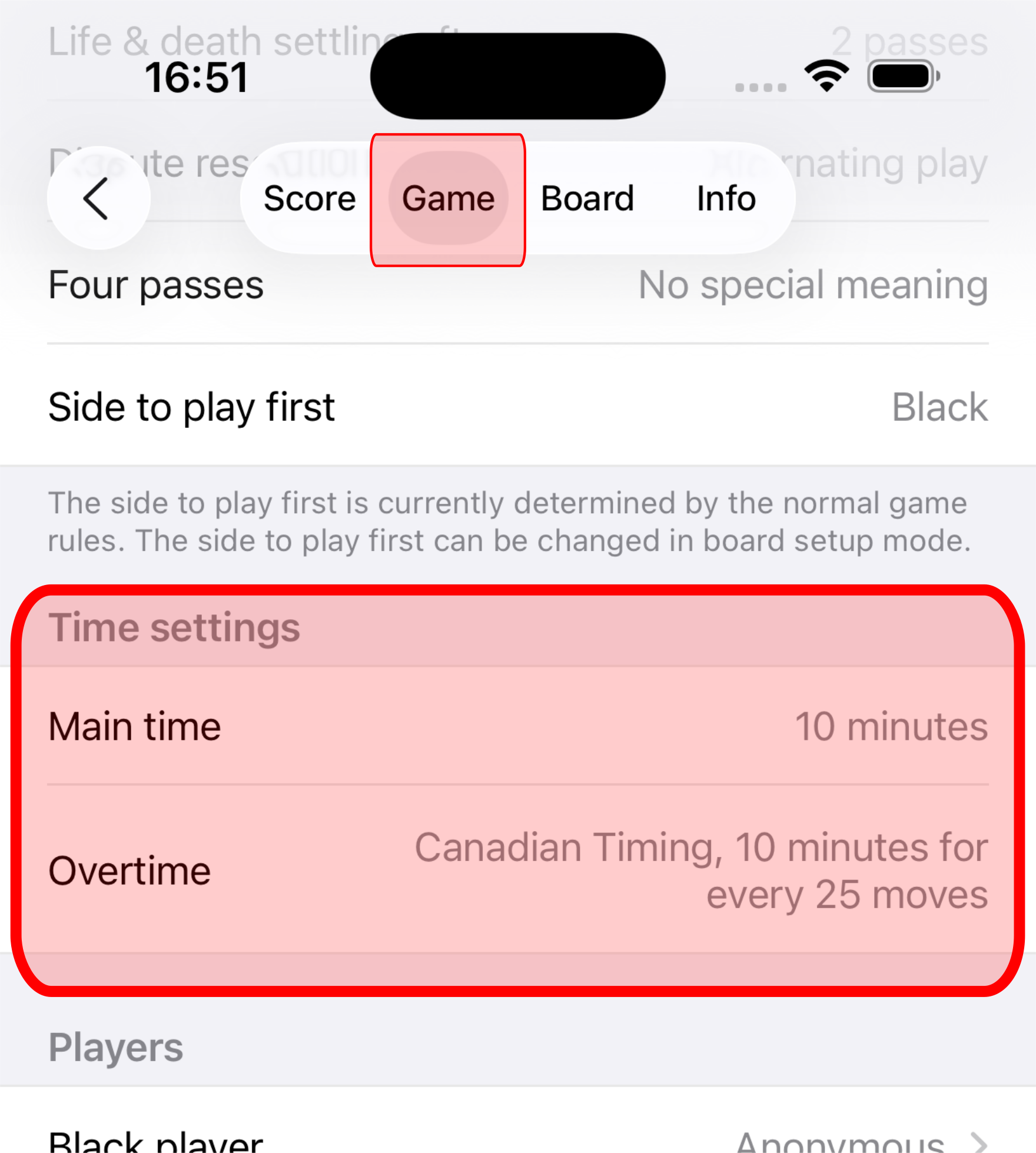
If you are no longer sure which time settings you chose when you started the game, you can view the settings on the “Game” tab of the “Game Info” screen
Expand the illustration on the right to see an example.
When a player runs out of time the game ends and that player loses, while their opponent wins, on time. The app reflects this in several ways. Some examples:
- The clock of the player who ran out of time shows “0:00”.
- The Status Text, e.g. “Black wins on time”.
- The game result, e.g. “Black wins on time”.
You can undo the loss on time by selecting “Undo lost on time” from the menu that pops up when you tap the Menu button. This works the same w ay as if a player had resigned and you would select the menu entry “Undo resign”.
In addition, the clock of the player who lost on time will be reset to the state it had when the player’s turn began. In this way the player gets another chance at making a move within the time they had originally remaining.
Saving the game to the archive records both
- The time settings with which the game was started, and
- The remaining time and, if applicable, the number of moves or periods after each move.
Loading a game from the archive restores these things. In general, when the app has finished loading the game, it will start the player clock running from the remaining time after the last move in the saved game was made.
When you try to load a game that comes from an external source, the app may not understand the Overtime system that is recorded in the saved game. When that happens:
- The app will show that the saved game uses a custom Overtime system, and the verbatim overtime system data that is encoded in the saved game.
- But the app will not attempt to interpret any remaining time and number of moves/periods information because the app cannot know the rules of the time system. See the section Invalid time data for details.
InfoThe reason for the potential incompatibility is that there is, unfortunately, no standardized way how Go programs are supposed to encode Overtime systems. In particular the SGF standard does not require a particular encoding format. As a result, every Go program can potentially use its own encoding scheme. This app uses the same encoding scheme as KGS and online-go.com for the Overtime systems that these platforms support (Canadian Timing, Japanese Timing, Fischer Timing).
Even when a game with timed play is ongoing, the app does not prevent you from navigating to an old node of the current game variation, or to a node from a different variation. If you’re new to game variations, see the manual pages The current game variation and Game variations to learn more.
When you change the node selection, the following happens:
- The app discards time data of the previously selected node. In other words: The app forgets about any time that the player whose turn it is has already used.
- The app sets both player clocks to the state after the move in the newly selected node was made.
- The app starts the clock of the player whose turn it is now (unless something prevents the autostart, see below).
- Page 3 of the annotation view (see Annotations) shows the time data of the player who made the move in the newly selected node.
TipIn essence, the app attempts to set players up so that the timed game play can immediately continue from the newly selected node.
Some of the exceptions where a player’s clock is not started after the node selection changes:
- The player’s clock was previously manually suspended. You need to start the player clock by tapping the clock.
- A user preference prevents the autostart. You need to start the player clock by tapping the clock.
- The player whose turn it is now is a computer player. The computer player clock will automatically start when you tap the Computer Play button to let the computer play for itself.
- The game has already ended.
In a game without timed play, the computer player’s Thinking time setting is limiting how long the computer player may take at maximum to make a move.
In a game with timed play, the “Thinking time” setting has no effect, instead the computer player uses the timed play settings chosen for the game as the limiting factor.
If you wish to know more, the following sections provide an overview of the algorithms being used.
NoteThe information applies both when the computer player makes a move for itself, and when it makes a move on behalf of a human player.
NoteRegardless of whether “Thinking time” or the timed play settings are used as the limiting factor, other computer player settings - notably the Maximum games setting - may cause the computer player to take less time for its moves than “Thinking time” or the timed play settings would allow.
During the Main time phase of the game, the calculation of the time the computer player uses per move is quite complex. It works, roughly, like this:
- The computer player estimates how many moves it will have to play for the entire game. The basis for this estimate is the board size, combined with the number of occupied/unoccupied intersections.
- The computer player then divides the amount of main time that it has left by the estimated number of moves. The general result of this division is that early moves get more time than later moves, because as the amount of main time dwindles, later moves get less and less time.
- For the first half of the game (as per the estimated number of moves), the algorithm applies an additional factor so that early moves are favoured even more heavily. Once the computer player has made half of the estimated moves, the algorithm ceases to apply the factor.
Although Fuego (the computer player implementation) provides a few parameters with which to tweak the algorithm, the app currently does not expose any of them in the user interface. If and when that changes, more details about the algorithm will be made available in this manual.
NoteThe lack of details about the algorithm in this manual does not come from a desire to keep the algorithm secret - after all the source code for both Fuego and this app is freely available. The lack merely comes from the assumption that most users who read this manual will not be interested in such details.
During the Overtime phase of the game, the calculation of the time the computer player uses per turn is generally much simpler than during the Main time phase, but it is different for each time system.
| Time system | Time per move calculation | Remarks |
|---|---|---|
| Canadian Timing | Remaining time in the current period, divided by the number of moves the player is still required to make during the current period. | Assuming the computer player always uses up the entire time it has available for a move, every move gets an equal share of the period duration. This only changes if the computer player for some reason takes less time to make a move than it would have available - as a result, subsequent moves in the same period get more time. |
| Japanese Timing | Full period duration. | Because the computer player always makes its move within the remaining time - in this case before the period duration has elapsed - the computer player will never make use of any periods beyond the first. This limitation, or bug if you like, in the current implementation of the app is tracked in issue 449 on GitHub (external link) and will be fixed in one way or another in one of the next releases of the app. |
| Fischer Timing | However much time remains to the player. | |
| Steady Average Timing, with one or more required moves remaining | Remaining time in the current period, divided by the number of moves the player is still required to make during the current period. | Same as Canadian Timing. |
| Steady Average Timing, with no more moves required | Remaining time in the current period, plus the available time for the first move in the next period. | Because the computer player always makes its move within the remaining time, the remaining time must be made greater than it effectively is. Adding the time available for the first move in the next period is roughly equivalent to what a human player might do, without any strategic considerations of how to better use the remaining time for extra moves. |
| Total Average Timing | Remaining time in the current period, divided by the number of moves the player is still required to make during the current period. | Same as Canadian Timing. |
Technical backgroundFuego (the computer player implementation) actually only understands Canadian Timing. To make the other time systems playable at all, the app makes creative use of the GTP commandtime_left.
When you try to load a game from the archive that comes from an external source, the app may encounter time data that it cannot interpret, or that it considers invalid.
The app cannot interpret time data when the saved game contains a custom Overtime system. Custom time systems are explained above, in section Saving and loading the game to/from the archive.
When the app understands the Overtime system, it checks the time data in the saved game for validity. It does so with a certain level of strictness on which you have an influence.
You can select between three levels of strictness with which the app should check time data for validity. You find the selection in the Settings area of the app under “Timed play > Time data validation mode”.
InfoChanging the time data validation mode takes effect only when you start the next game, or load another game from the archive.
| Validation mode | Summary | Remarks |
|---|---|---|
| Basic (the default) | Validation is performed to detect basic problems only - problems that prevent the app from supporting timed play while a given node is selected. | Problems detected in this mode range from foundational problems with the game’s time systems (e.g. a custom time system, or a time system’s values exceed the maximum values supported by the app), to structural problems (e.g. time data is missing after a move was made, or refers not to the same player as the move), to foundational problems with a node’s time data (e.g. negative values, or values that exceed the maximum values supported by the app). If there is a foundational problem with the game’s time systems, the invalid state and invalid reason are propagated to all nodes. Otherwise, a node’s time data is examined only in isolation. |
| Normal | In addition to the validation performed in Basic mode, a number of inconsistencies between time system data and node time data are detected. | A node’s time data is examined in relation to the time system that the time data refers to (e.g. remaining main time after a move is greater than the initial main time, or remaining number of required moves is greater than the time system value). Even if you are a casual user, you may still be interested in problems found by this mode. |
| Strict | In addition to the validation performed in Normal mode, inconsistencies in the time data sequence are detected. | A node’s time data is examined in relation to the time data in the preceding node (e.g. remaining main time time after a move is greater than it was after the previous move, or remaining number of required moves increases instead of decreases). This mode is likely to be of interest only if you want highly consistent time data. |
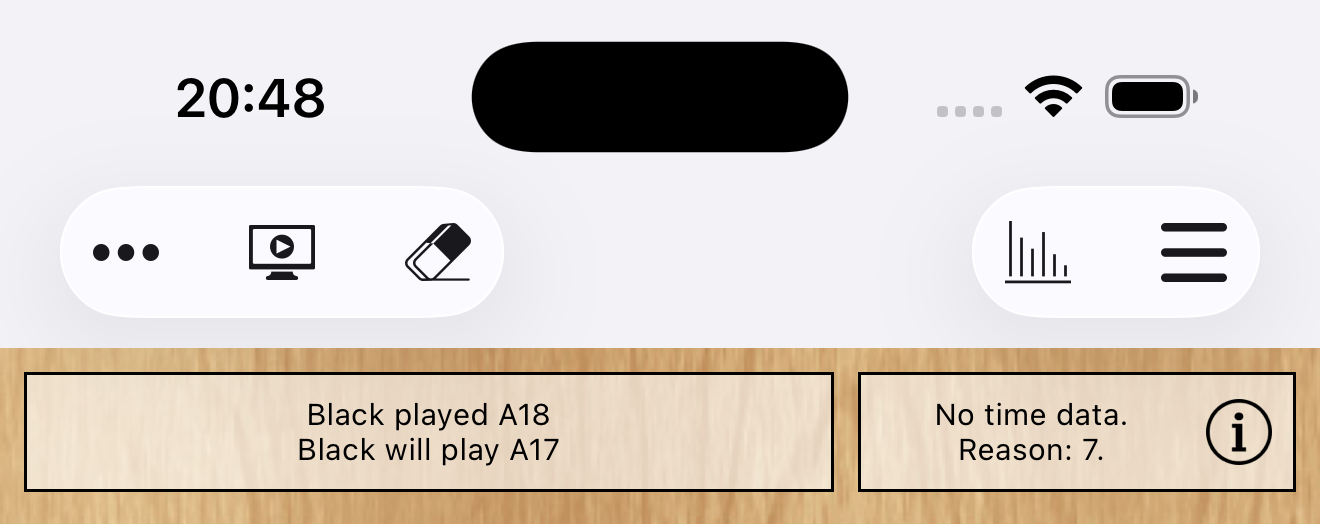
When the app finds a problem with the time data in a node, it means that the app cannot support timed play while this node is selected. Because timed play is not possible, the app hides the two player clocks and instead populates the clock view with these elements:
- A numeric code identifying the problem.
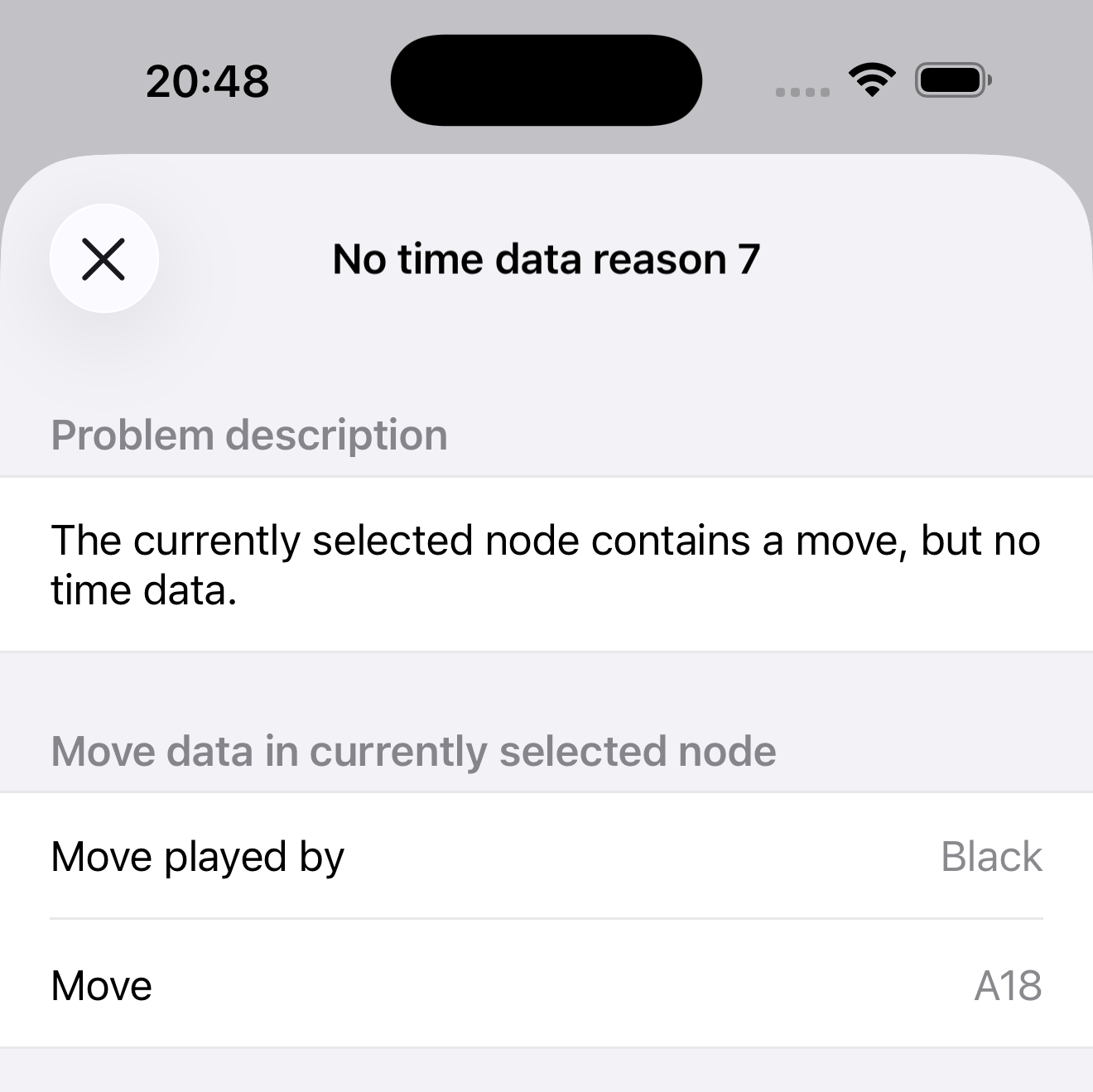
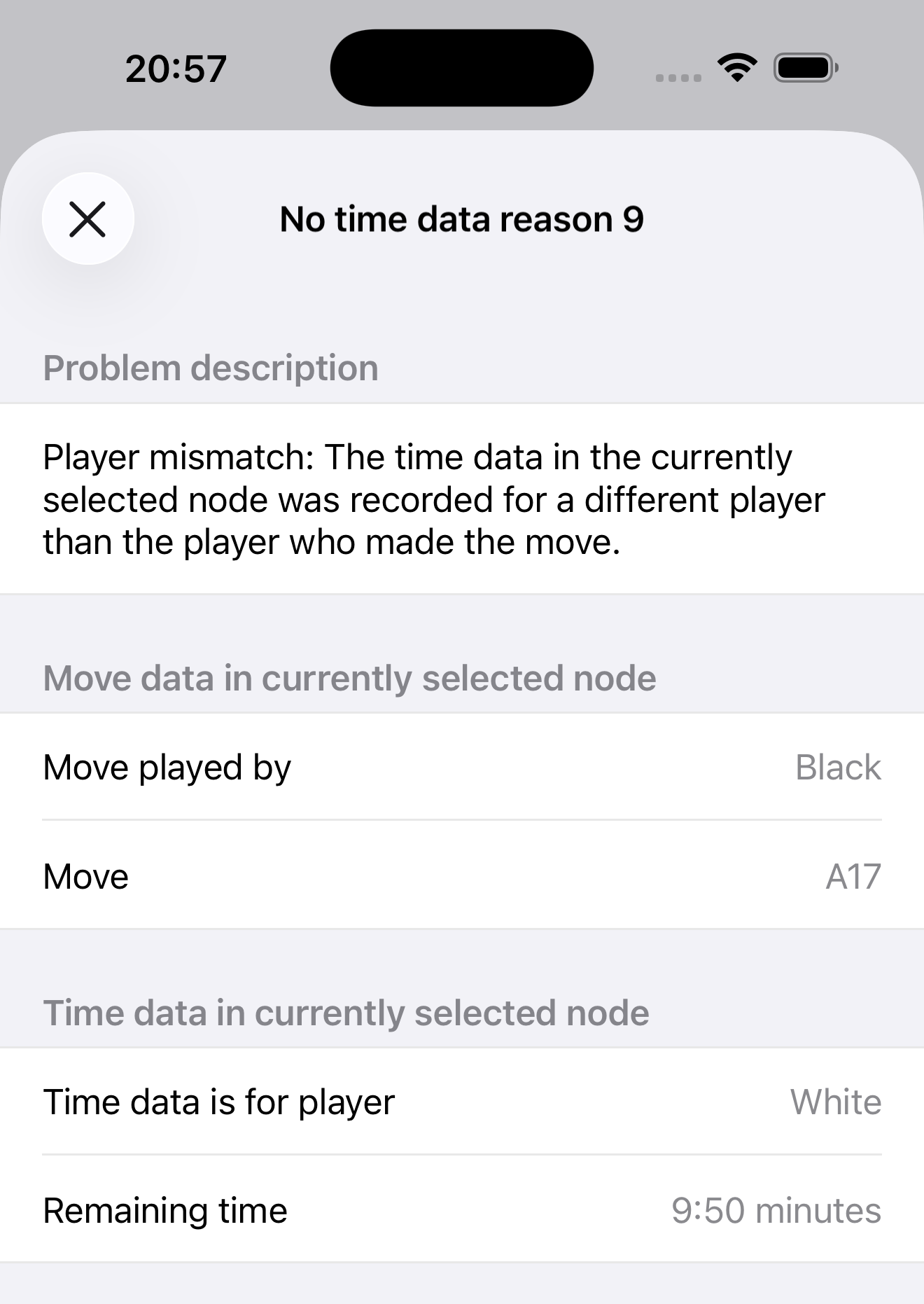
- An Info ⓘ button that you can tap to call up a detail view with more information. Below you see a few examples how that detail view can look like.
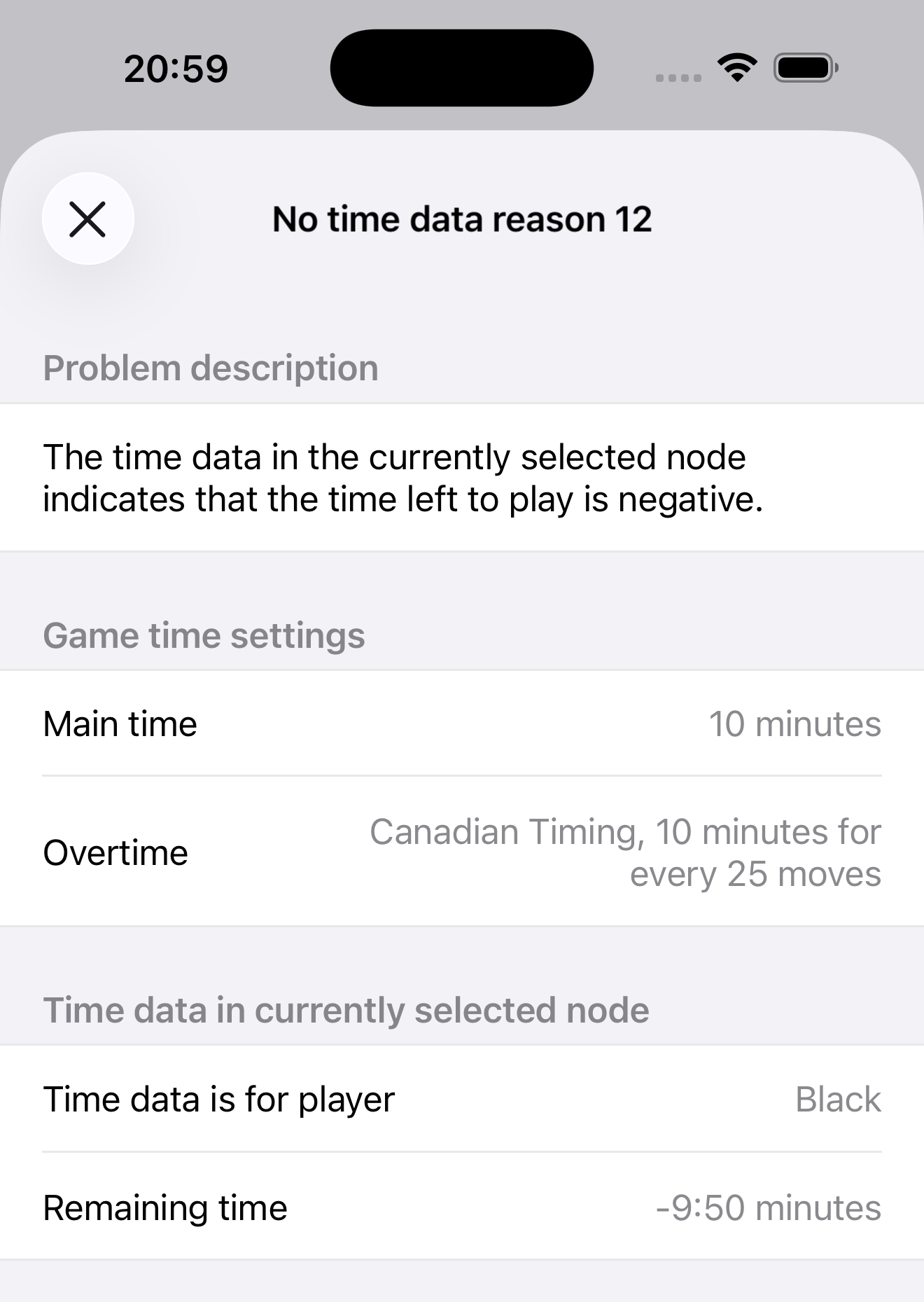
As mentioned in a previous section, if the app finds a foundational problem with one of the game’s time systems, the invalid state and invalid reason are propagated to all nodes. The clock view in that case constantly shows the same invalid data information, regardless of which node you select.
It can be argued that in this situation the information that the view displays has only minimal value, and that it would be better to hide the view so that the Status Text gets more screen estate - which on small devices is particularly scarce.
You find the corresponding selection in the Settings area of the app under “Timed play > Hide clock view when time data validation finds a problem with one of the time systems”.
InfoWhen you enable the “Hide clock view” setting, the invalid time data information is still available, on page 3 of the annotation view (see Annotations).