
Little Go User Manual
Little Go is an iOS application that lets you play the game of Go on the iPhone or iPad. This is the user manual for Little Go. It has last been updated for version 2.1 of the app.
Use the main menu on the left to navigate through the app features in a structured way. As an alternative you find below the screen you see when you launch the app for the first time, annotated with some links you can follow to get a quick overview.
NoteBecause the iPhone and iPad user interfaces are very similar, or even identical, illustrations in this user guide will usually show only the iPhone user interface because it is more compact. Also note that the illustrations were captured on a variety of iOS versions, so they may not all show the same style for screen elements.
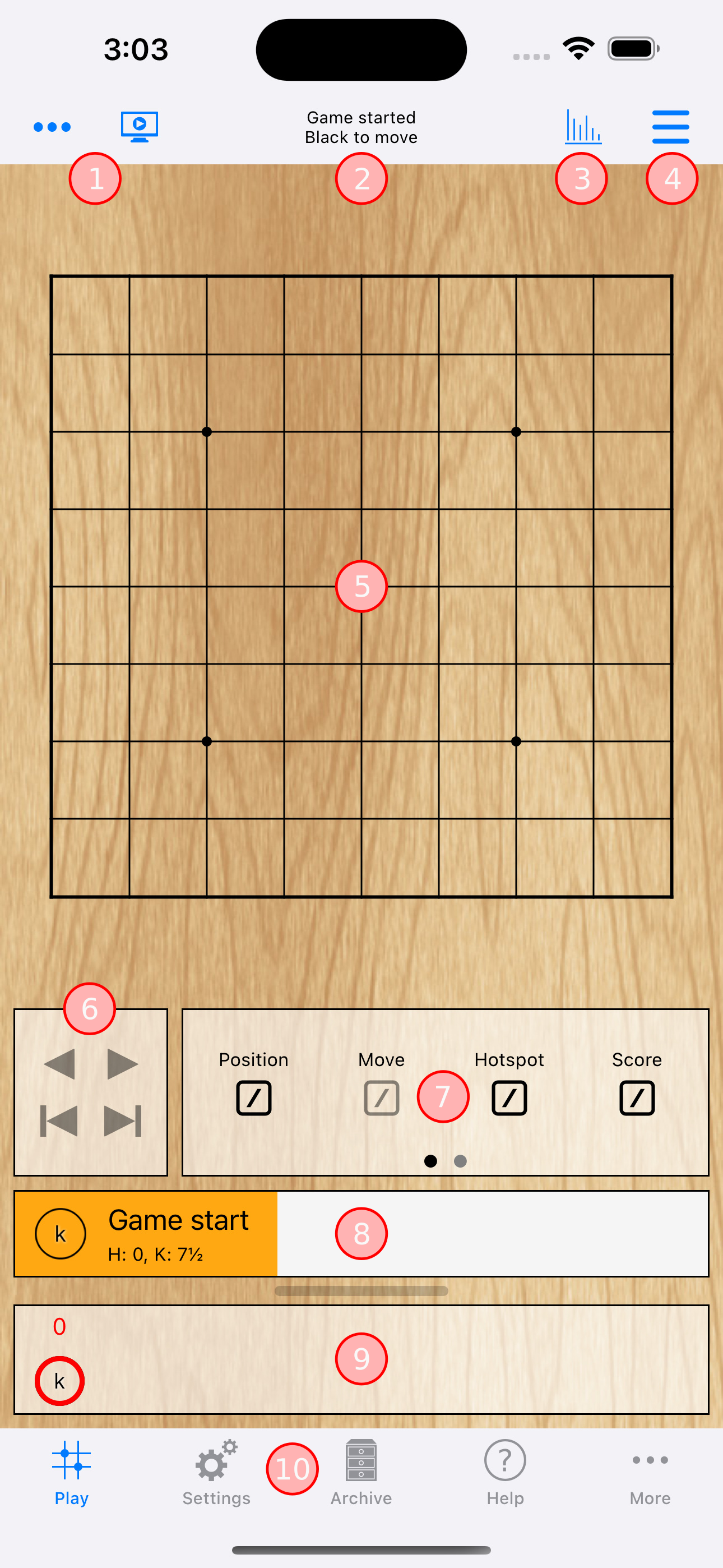
- A toolbar with several buttons. The buttons shown on the left frequently change depending on the current context. The buttons shown on the right always stay the same. Follow this link to see a list of all buttons that can appear.
- A Status Text that shows context-related information such as whose turn it is to play. Read more.
- This button calls up a screen with information about the current game, such as the rules that are currently in force. Some of the information can be edited. Read more.
- This button calls up a menu with additional actions, of which the most important one probably is the action to start a new game with a different board size. Follow this link to see a list of all actions that can appear in the menu.
- The Go board. Because no moves have been played yet it does not show any stones. Follow this link for instructions how to place a stone and play the game. This page explains how to change the board size.
- A few buttons for navigating back and forth between the nodes of the current game variation. Because no moves have been played yet all buttons are disabled. Read more.
- A box with controls for annotating the currently selected node. Read more.
- The list of nodes of the currently selected game variation. Because no moves have been played yet there is only a single node: The root node which represents the start of the game. Read more.
- A tree view that shows all nodes of all game variations of the currently loaded game. Because no moves have been played yet there is only the root node of the tree. Read more.
- A tab bar which lets you switch between different areas of the app. The currently selected area where the Go board is located is the Play area. Read more.